We have added an extremely useful feature to our beloved online HTML editor because many visitors were complaining about lost documents when they leave the website. 💾 We didn’t want to bother them with popups nagging them to save the content before leaving the site so we set it up to autosave the edited documents. In this article I’m explaining how to implement this feature for a simple textarea.
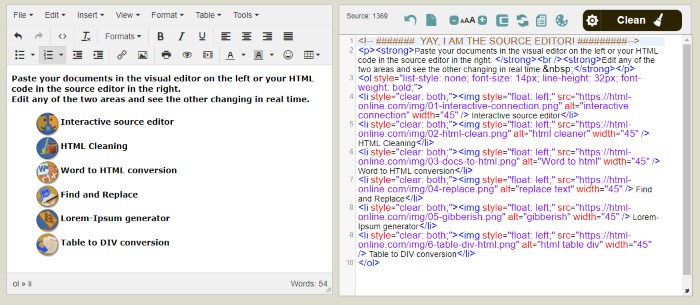
Autosaving form content is one of those small UX features that users immediately appreciate, often without even noticing it. Losing typed text because of a page refresh, navigation, or accidental tab close is frustrating, and completely avoidable with modern browser APIs.
We implemented a simple autosave solution using localStorage, HTML, CSS, and jQuery. We’ll break down exactly how it works, explain the relevant code snippets, and cover real-world pros and cons so you can decide when this approach is appropriate.
Good to know about localStorage:
- ⏳ localStorage does not expire automatically
Data stored in localStorage stays there indefinitely, unlike cookies. It survives page reloads, browser restarts, and even system reboots. The only ways it gets removed are manual deletion via code, the user clearing site data, or rare browser cleanup due to storage pressure. - 🌍 It is shared across all pages of the same origin
All pages under the same protocol, domain, and port can read and write the same localStorage data. This makes it ideal for cross-page autosave features, but it also means careless key naming can cause collisions. - 📦 It has a limited storage size (~5 MB per origin)
Browsers typically allow around 5 MB of storage per origin. Exceeding this limit causes write failures or QuotaExceededError exceptions. It’s best used for text, small JSON objects, and settings and not large files or images. - ⚡ It operations are synchronous and block the main thread
Every read or write happens synchronously on the main thread. For small amounts of text this is negligible, but frequent writes of large data can cause UI lag. For heavy data or high-frequency updates, IndexedDB is a better choice. - 🔓 It’s accessible to any JavaScript running on the same site
There is no built-in security or isolation between scripts. Any script loaded on your domain – including injected scripts via XSS – can read its contents. Because of this, sensitive data like passwords or tokens should never be stored in localStorage.
The core idea
The concept is the following:
- 👂 Listen for changes in a
<textarea> - 💾 Save the content to
localStorageon every edit - 🔁 Restore the content when the page loads
- 📝 Optionally share the same content across multiple pages
Because localStorage is:
- persistent (survives reloads and browser restarts)
- synchronous
- scoped per domain
…it’s a perfect fit for lightweight autosave functionality.
Why use localStorage for autosave?
Compared to cookies or server-side storage, localStorage has several advantages:
- No server calls
- No size pressure from HTTP headers
- No cookie consent issues
- Instant read/write access
- Supported by all modern browsers
Each origin, protocol and domain gets ~5 MB of storage, which is more than enough for text content.
Basic HTML structure
The HTML itself is minimal. All we need is a textarea and (optionally) a clear button.
<textarea id="notes" placeholder="Type here..."></textarea>
<button id="clearBtn">Clear saved text</button>
The important detail is the stable id (notes). This is what we bind to from JavaScript and what allows the same logic to work across multiple pages.
Saving content on every edit
The key event here is input. Unlike keyup, input fires for: typing, pasting, cutting, drag & drop, mobile keyboard input.
That makes it ideal for autosave.
$("#notes").on("input", function () {
  localStorage.setItem(STORAGE_KEY, $(this).val());
});
What happens here:
$(this).val()reads the current textarea valuelocalStorage.setItem()stores it under a fixed key- The overwrite is intentional cuz we always want the latest version.
This operation is synchronous, but for small text it’s effectively instant.
Restoring content on page load
On page load, we check if something was previously saved.
var saved = localStorage.getItem(STORAGE_KEY);
if (saved !== null) {
  $("#notes").val(saved);
}
Important points:
localStorage.getItem()returnsnullif the key doesn’t exist- We explicitly check for
nullto avoid overwriting intentionally empty text - This runs immediately when the page loads
As a result, users see their text instantly restored, without any UI flicker.

Sharing content across pages
If multiple pages use the same storage key, they automatically share the same content.
var STORAGE_KEY = "autosave_textarea_notes_v1";If you want per-page isolation, simply include the pathname:
var STORAGE_KEY = "autosave_textarea_notes_v1:" + location.pathname;This small decision has a big architectural impact, so choose intentionally.
Clearing saved content
Users should always have a way to reset saved data.
$("#clearBtn").on("click", function () {
  localStorage.removeItem(STORAGE_KEY);
  $("#notes").val("").focus();
});
This bit:
- removes the stored value
- clears the textarea
- restores focus for better UX
Never force users to open DevTools just to reset state.
Pros of this approach
- Excellent UX
Users never lose text accidentally. - Zero backend dependency
No API, no database, no latency. - Extremely fast
localStorage access is near-instant for text. - Simple mental model
One key, one value, predictable behavior. - Works offline
Ideal for tools, editors, and utilities.
Cons and limitations
- Storage is local to the browser
Content does not sync across devices or browsers. - No versioning or history
Each save overwrites the previous value. - Synchronous API
For very large data (hundreds of KB+), excessive writes could block the main thread. - Not suitable for sensitive data
Anything in localStorage is readable via JavaScript on the same domain.
When to use this pattern
This approach is ideal for:
- Online editors
- Form drafts
- Notes tools
- Code playgrounds
- Comment or article drafting
- Internal utilities
It is not suitable for:
- Authentication data
- Personal or sensitive information
- Multi-user collaboration
- Long-term backups
Professional best practices
- Use versioned keys (
_v1) so you can invalidate storage later - Keep autosaved content small
- Always provide a clear/reset option
- Avoid saving on timers.
Inputevents are just enough - Do not combine this with cookies unless absolutely necessary
Final thoughts
Autosaving with localStorage is one of the highest ROI UX improvements you can add to a web project. It’s simple, reliable, and user-friendly when implemented correctly.

Used thoughtfully, this pattern can dramatically reduce user frustration while keeping your codebase clean and dependency-free.
Demo page
You can save this text as an .html file and try it out:
<html lang="en">
<head>
<meta charset="utf-8" />
<meta name="viewport" content="width=device-width,initial-scale=1" />
<title>Autosave Textarea (localStorage)</title>
<script src="https://code.jquery.com/jquery-3.7.1.min.js"
integrity="sha256-/JqT3SQfawRcv/BIHPThkBvs0OEvtFFmqPF/lYI/Cxo="
crossorigin="anonymous"></script>
</head>
<body>
<div class="wrap">
<h1>Textarea autosave (localStorage)</h1>
<textarea id="notes" placeholder="Type here… (autosaves on every edit)"></textarea>
<div class="bar">
Storage key: <code id="keyLabel"></code>
<button id="clearBtn" type="button">Clear saved text</button>
</div>
</div>
<script>
(function () {
var STORAGE_KEY = "autosave_textarea_notes_v1";
// Per-page variant (optional) explained above
$("#keyLabel").text(STORAGE_KEY);
// Load saved content on page load
var saved = localStorage.getItem(STORAGE_KEY);
if (saved !== null) {
$("#notes").val(saved);
}
// Save on every edit
$("#notes").on("input", function () {
localStorage.setItem(STORAGE_KEY, $(this).val());
});
// Clear saved content
$("#clearBtn").on("click", function () {
localStorage.removeItem(STORAGE_KEY);
$("#notes").val("").focus();
});
})();</script>
</body>
</html>