I tested the best photo to sketch software and the best image conversion tools for Windows🪟, Mac🍎, and mobile📱 devices. What I’m looking for from each of them is plenty of filters, presets, and a simple workflow that’s as close to turning a photo into a masterpiece (or a snapshot into a drawing) as can be. SoftOrbits Photo to Sketch Converter is the stand-out software for converters and hobbyists. While it may be a top sketch generator and line art tool, it also ranks among the best software for any kind of photo transformation, whatever you’re creating.
Quick comparison of photo-to-sketch tools 🎨
| Tool | Platform | Best for | Offline use | Skill level |
|---|---|---|---|---|
| SoftOrbits | Windows | Fast preset-based sketches | ✅ Yes | Beginner |
| ibis Paint X | Android / iOS | Mobile sketch editing | ✅ Yes | Beginner |
| AKVIS Sketch | Windows / macOS | Artistic photo effects | ✅ Yes | Intermediate |
| Krita + G’MIC | Win / mac /🐧Linux | Maximum control & filters | ✅ Yes | Advanced |
| Adobe Fresco | Windows / iPad | Hand-drawn sketches | ⚠️ Partial | Intermediate |
| HiPaint | Android / iOS | Quick mobile sketches | ✅ Yes | Beginner |
Why photo-to-sketch tools matter for web projects:
Sketch-style images are frequently used on websites for blog illustrations, hero sections, landing pages, tutorials, and creative portfolios. Compared to raw photos, sketches often load faster, reduce visual noise, and blend more naturally with minimal HTML code.
1. SoftOrbits Photo to Sketch Converter
The first app on this list is one of my favourite tool. Sketch Drawer is a program by SoftOrbits it produces a colorful handmade drawing out of an ordinary photograph laying accurate pencil strokes even if you can’t hold a pencil. It makes converting photos to sketches fun. Sketch Drawer has a tool box where you can select the presets for transforming your photos. First you should select style realistic, detailed sketch, classic or Anime. So we have a picture and its preview here where you can see what the picture is going to look like when the selected effects apply. If you click on the Box you can see multiple options and each of them can be previewed as well.
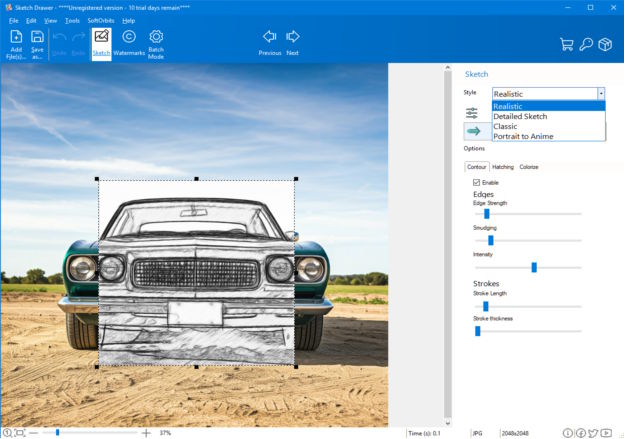
The Sketch Drawer there are three options to play with contour hatching and colorizing. You can play with strokes as well making them long and thick or shorter and lighter. If Hatchin is enabled you can vary the edge strength as well. You can also disable colorizing and make the picture black and white or use color shift and change the color of the strokes. Enabling hatching means generating textures to hatch the result image and generate strokes. Enabling coloration will lead to a more colored sketch. There are also other useful tools within the program you can crop rotate and correct the image
Web tip: For HTML publishing, exporting sketches as optimized JPG or PNG files helps keep page load times low. High-contrast sketches usually compress well and remain readable even at smaller sizes.
Website: softorbits.net
2. ibis Paint X
Next on this list is one of my favourite mobile apps for processing photos, it’s ibis Paint X. Its superpower is the built-in ‘Extract Line Drawing‘ filter. The business model is ad-supported. If you watch one ad every day, what that does is it unlocks all of the artistic filters and sketch effects. You wathc one ad and the app totally unlocks the ‘Photo to Sketch‘ features for you the rest of the day. This isn’t just about simple lines; it includes transparency and contrast adjustments for your photos. It has everything you need to get the sketch done and unlike other apps, you know that your processed photo is your art, it’s not going up to anybody’s cloud.
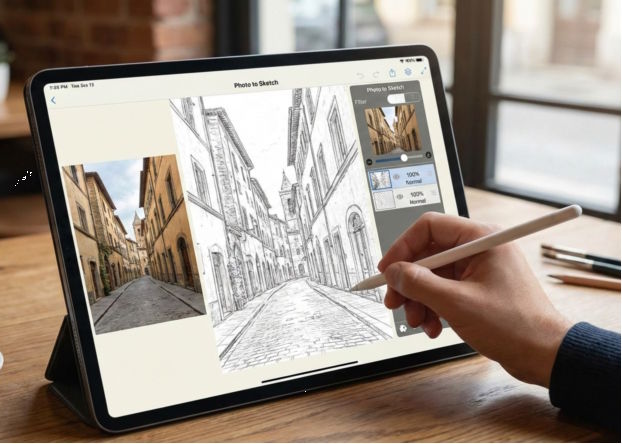
There are also a lot of nice quality of life things here in ibis… like two finger touches to undo, brush stroke stabilization features, a fully featured layer palette with blend modes… It’s great for beginners.
HTML use case: Mobile-generated sketches are often used in blog posts and CMS platforms. Once exported, they can be embedded using standard <img> tags and styled further with CSS for responsive layouts.
Link: play.google.com/store/apps/details?id=jp.ne.ibis.ibispaintx.app&hl=en
3. Akvis Sketch
Basically it can change all your images into sketches. Now if you’re not really good at Photoshop this program does take a lot of the hard work out of it for you and makes it much more easier to do. You can use this as a free trial. All you need to do is put in your project that you want to be working on or your image.
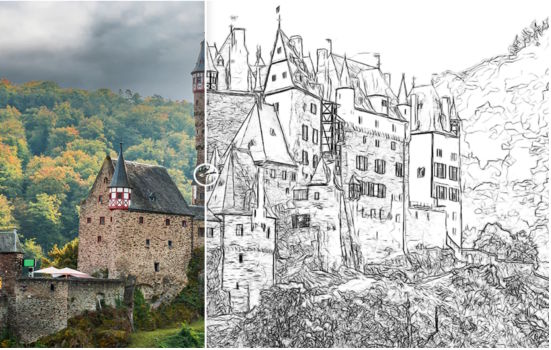
Now this is where all the magic happens this is where you can make changes to your image. It has watercolor and this will add in watercolor as well and also charcoal. You will see how the numbers changing as I drag the sliders you can type the number. Coloration again self-explanatory this will add a slight bit of color to the image like so.
Now also on this dropdwn menu here we have a load of other presets that you can change so you can do rough sketch clear lines. Now you’ve also got your background and this allows you to change your background. As you can also here you can add in text and also the canvas. Again once you’ve set this up exactly how you want you can do the before and the after and this will then build your image. It takes a lot of the hard work out of it for you so if you’re not very good with Photoshop or anything like that then this program is a definite must.
Website: AKVIS.com
4. Krita (via G’MIC)
Let’s talk about Krita. Its superpower is that it’s an old school style desktop app with an absolute boatload of plugins like G’MIC packed into it. If you want options for photo conversion, you want Krita.
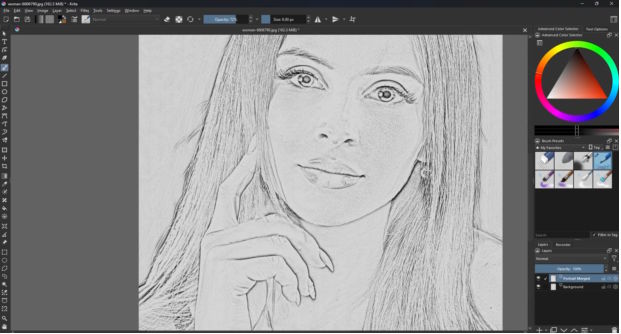
Krita’s other superpower is that it’s open source; Krita has always been free, will always be free. The G’MIC plugin within Krita is kind of a miracle, it provides hundreds of ‘Photo to Sketch’ algorithms right here on your computer. The biggest drawback of Krita is that it’s probably the hardest app on this list for converting photos for the very first time. The more filters you have, the more cluttered the interface is, and finding the right sketch effect can be a little overwhelming if you’re starting from scratch.
Performance note: Because Krita works locally, it is suitable for preparing images offline before uploading them to HTML pages, avoiding server-side processing.
Website: krita.org
5. Adobe Fresco
Adobe Fresco app is connected to Adobe ecosystem. It’s a great app and now it is also free. Adobe has decided to make this one free to compete with other apps. So what about this app do I really like for photo work? Well, it’s designed from the ground up to work with the Adobe ecosystem. That means you can bring in photos and use ‘Live Brushes’ to trace over them or sync with Photoshop filters. Its superpower is the seamless integration; it uses Photoshop’s legacy of photo manipulation tools. It ends up acting like a bridge for your photos so you can turn them into sketches and they retain their crispness.
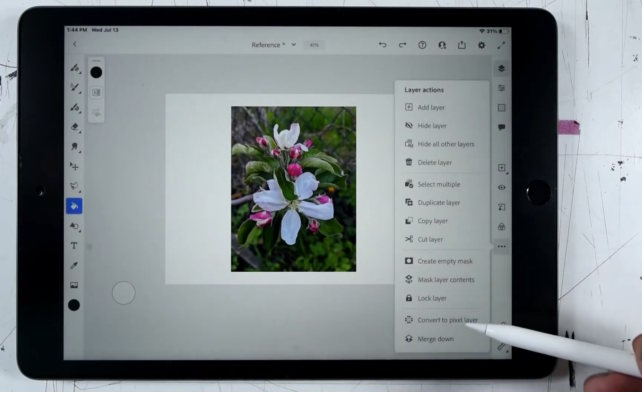
You also may draw by hand. So there’s six different watercolor brushes and seven different oil brushes. The watercolor brushes emulate real watercolor with colors bleeding into each other as you paint.
Where is it available? It’s on Windows and iPads, which is great for mobile photo editing.
Link: apps.apple.com/us/app/adobe-fresco-draw-paint-app
6. HiPaint
Another mobile app is something called HiPaint. It’s available on Android and on iOS. HiPaint is basically a Procreate clone, and just like Procreate, it has specific ‘Gaussian Blur‘ and ‘Pencil Sketch‘ adjustment layers.
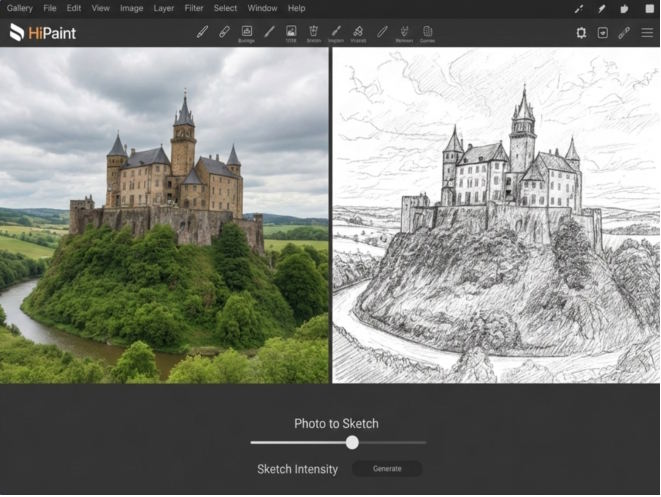
The Android part is the part that I really like for photo processing; as a mobile user, I just feel right at home jumping into the adjustments menu to convert an image. This is an ad-based app so you will have to watch an ad when you open up the app most times. You can use its layer blending modes to turn any photo into a line drawing, which is why I think it’s a solid choice for folks who are just starting out with photo-based art.
Website: aige-hipaint.com
How sketch images are commonly used on websites
- 📝 Blog post illustrations and tutorials
- 🎯 Landing page hero images
- 📊 Explainer graphics and infographics
- 🎨 Portfolio and creative showcase pages
- ⚡ Lightweight alternatives to large photos
Final notes for web creators
Regardless of which tool you choose, sketch-style images are most effective on the web when they are properly optimized, consistently styled, and used with intention. When embedding them in HTML, always specify image dimensions, use responsive layouts, and compress files where possible to maintain good page performance.