Bookmarks let you save web pages so you can open them quicker without searching or typing the URL again. The steps to bookmark depend on your browser and device, but the core idea is always the same: click or tap the star ⭐ or use the Ctrl + D keyboard shortcut.
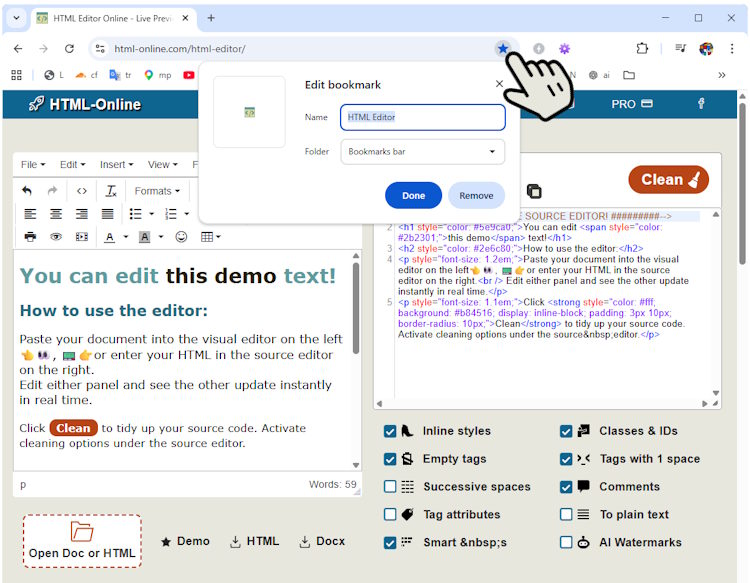
Fastest Method (Desktop)
- 💻 Windows: Press Ctrl + D
- 🍎 Mac: Press Cmd + D (⌘ + D)
This works in Google Chrome, Microsoft Edge, Firefox, and most modern browsers. A small window appears where you can rename the bookmark and choose a folder. Later you can access the saved links under your address bar, with a click of a button. Organize them in folers optionally.
Google Chrome
Computer
- Open the page you want to save
- Click the star icon ⭐ on the right side of the address bar
- Rename it if needed
- Choose a folder
- Click Done
iPhone
- Open the page
- Tap the Share icon 📤
- Select Bookmark or Add to Bookmarks
Android
- Open the page
- Tap the 3-dot menu
- Tap the star icon ⭐
Safari
Mac
- Open the page
- Click the Share icon 📤
- Select Add Bookmark
- Choose location and name
- Click Add
iPhone
- Open the page
- Tap the Share icon 📤
- Select Add Bookmark
- Tap Save
Microsoft Edge
Computer
- Open the page
- Click the star icon ⭐
- Name it and choose a folder
- Click Add
Mobile (iPhone & Android)
- Open the page
- Tap the menu (3 dots)
- Tap the star icon ⭐ (Add to favorites)
Firefox
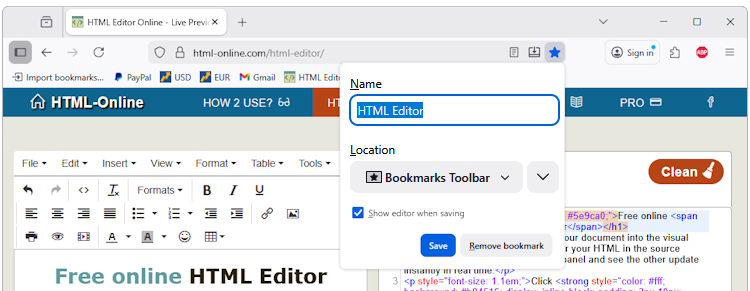
Computer
- Open the page
- Click the star icon ⭐
- Edit name/location if needed
- Click Done
Mobile (iPhone & Android)
- Open the page
- Tap the menu (3 dots)
- Tap Bookmark or the star icon ⭐
How to Access Your Bookmarks 🔎
Desktop
- Chrome / Edge / Firefox: Press Ctrl + Shift + B (toggle bookmarks bar)
- Click the Bookmarks bar under the address bar
- Or open menu → Bookmarks / Favorites
Mobile
- Tap the menu (3 dots)
- Open Bookmarks or Favorites ⭐
Sync Bookmarks Across Devices 🔄
If you use the same account, your bookmarks automatically appear on all your devices.
- Chrome: Sign in with your Google account
- Edge: Sign in with your Microsoft account
- Safari: Use iCloud (Apple ID)
- Firefox: Sign in to Firefox account
Once enabled, a bookmark saved on your phone will appear on your computer and vice versa.
How to Share Bookmarks 📤
Quick share (any device)
- Open the page
- Tap/click the Share icon 📤
- Send via email, messaging app, or copy the link
Share multiple bookmarks (advanced)
- Chrome / Edge / Firefox:
Export bookmarks as an HTML file (Bookmarks Manager → Export) - Send the file or import it on another device
Best method
- Use sync instead of manual sharing – it keeps everything updated automatically
Where Bookmarks Are Saved
- Desktop: Bookmarks bar or bookmarks manager
- Mobile: “Bookmarks” or “Favorites” section
- Synced: Stored in your account and shared across devices
Tips That Save Time ⚡
- Create folders📁 (Work, Travel, Tools)
- Drag🖐 bookmarks to reorder them
- Keep only frequently used sites on the horizontal the bookmarks bar
- Rename bookmarks to make room for more
- Use Ctrl/Cmd + D keyboard shortcut.